Creative planning
Six ways to use HappyHorse 1.1 in a real creative brief
Search results for HappyHorse 1.1 consistently focus on creator, campaign, product, and character-driven video work. These use cases stay grounded in the controls that are actually available on MaxArt, rather than promising a specific production result.
01
Product motion concepts
Start with a product packshot or a small product reference set, then describe one movement and one camera choice. This is a practical way to explore a product reveal, a detail shot, or an environmental setup before committing time to a full campaign edit.
02
Short-form campaign concepts
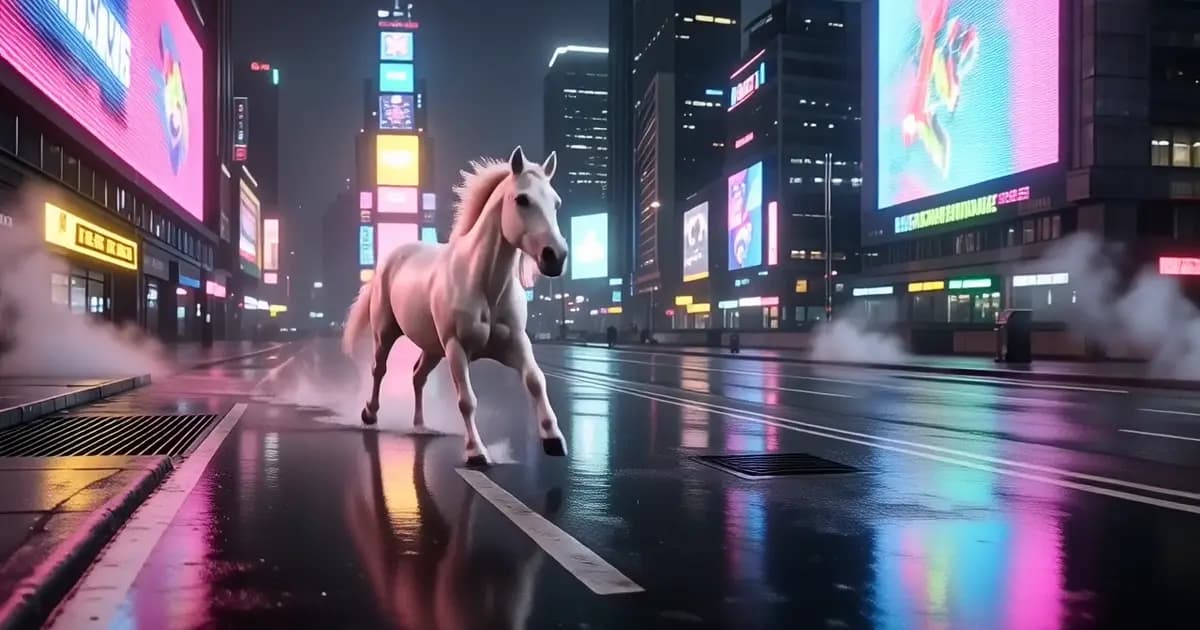
Use a text-first brief to prototype a social hook, a vertical scene, or a compact visual transition. Define the subject, the action, the setting, and the format you need, then treat the output as a concept to review and iterate rather than a promised final deliverable.
03
Character and scene previsualization
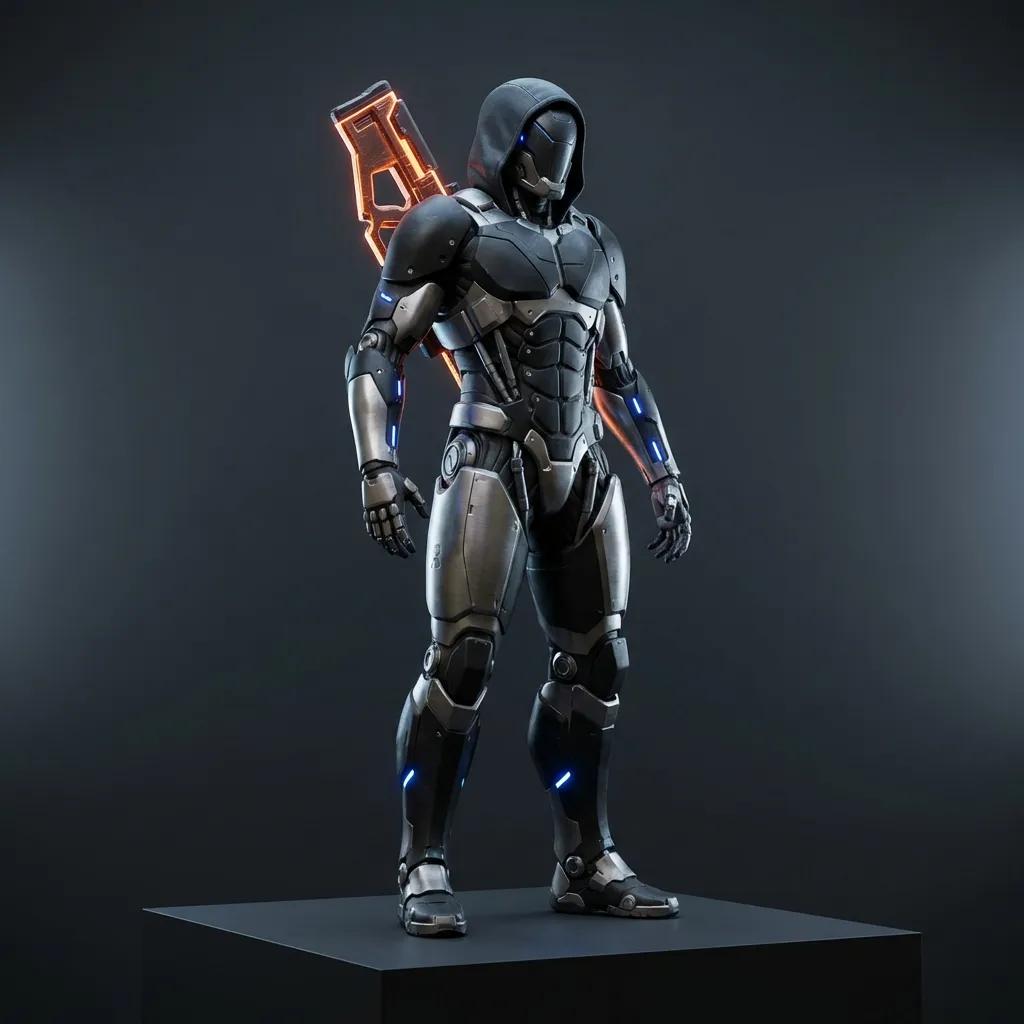
When a pose, wardrobe, environment, or composition needs to start from a known image, choose Image to Video. The first frame anchors the brief while the prompt explains how the subject and camera should move through the short sequence.
04
Reference-pack direction
Use Reference to Video for a scene that combines a known subject, object, setting, or visual treatment. Ordered [Image N] labels make a handoff clearer: the prompt can say exactly which image supplies each ingredient and what should happen next.
05
Short scene beats
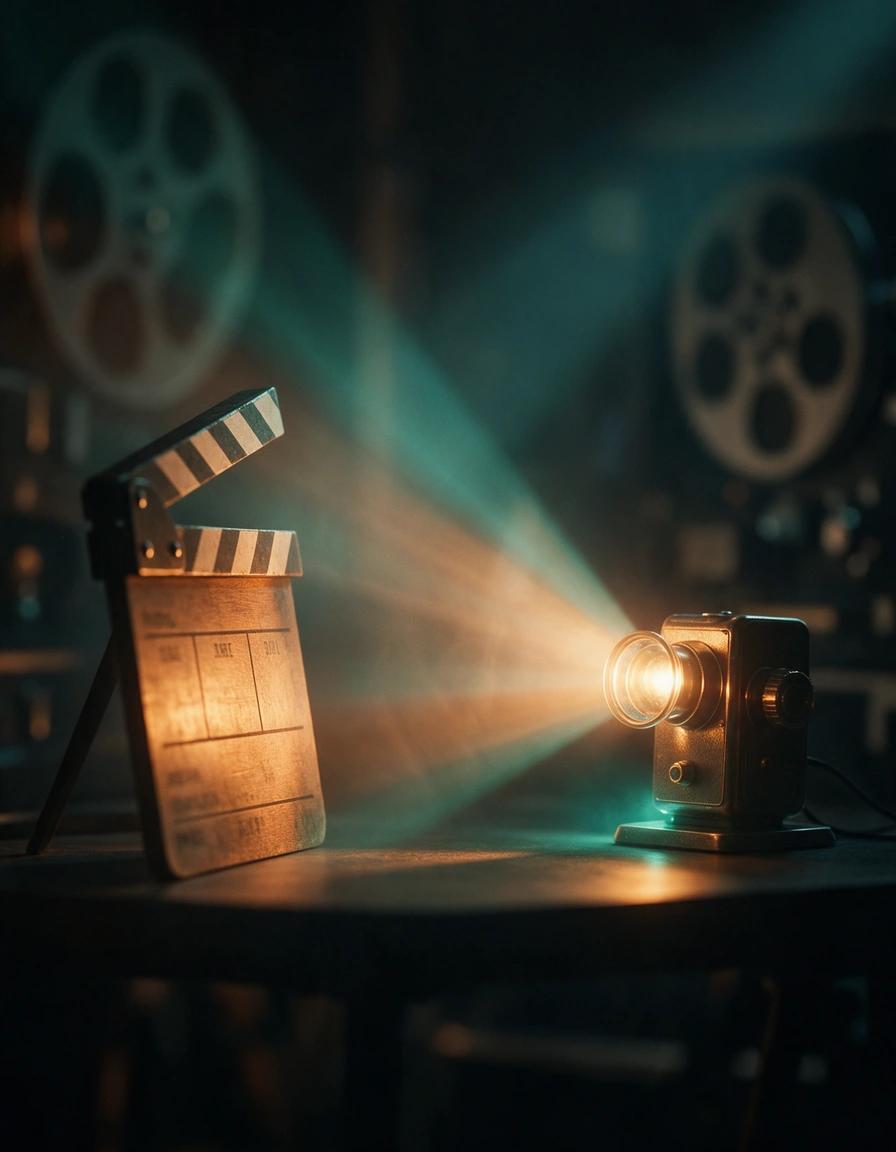
Plan a 3–15 second clip around one readable change: an entrance, a glance, a reveal, a camera move, or a change in light. A concise beat is easier to describe, review, and refine than a request to fit an entire story into one generation.
06
Format and framing tests
Use the available resolution, duration, and aspect-ratio controls to test the framing that fits your intended placement. Create a landscape, portrait, square, or wider composition only when the selected HappyHorse workflow exposes that control in the generator.